

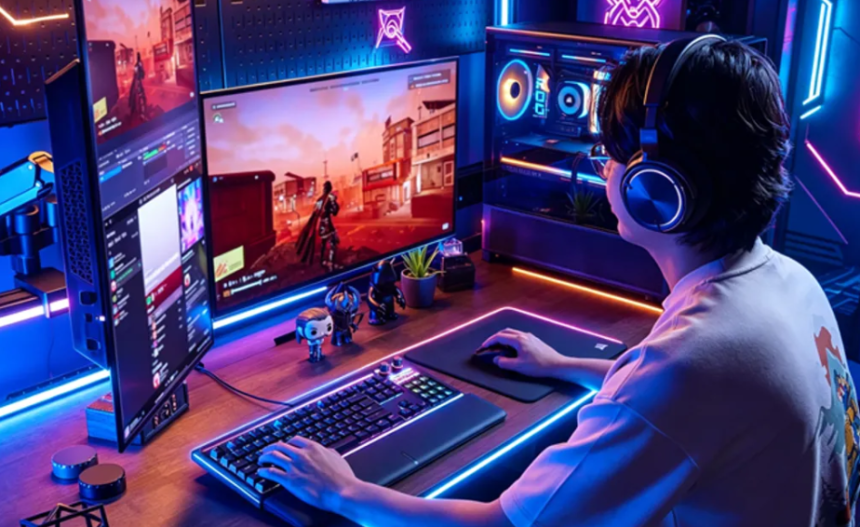
Gaming performance depends on several factors, including computer hardware, software settings, and a player’s ability to respond quickly. Even a powerful gaming PC may experience stuttering, unexpected frame drops, or delayed controls when something is not working correctly. Fortunately, gamers can identify many of these problems without immediately purchasing expensive components.
An FPS test, learning when to update drivers, and completing a reaction time test are three useful ways to understand your gaming performance. These methods help you evaluate your computer, maintain hardware compatibility, and recognize opportunities to improve your gameplay. Whether you enjoy competitive shooters, racing simulators, or open-world adventures, understanding these factors can help you build a smoother gaming experience.
1. Why an FPS Test Matters for Gamers
FPS stands for frames per second. It measures how many individual frames your computer renders during gameplay. Generally, a higher and more consistent frame rate creates smoother movement and makes fast-paced games feel more responsive.
An FPS test allows you to check whether your computer delivers the performance you expect. Instead of guessing why a game feels slow, you can measure its frame rate and compare results under different conditions.
For example, a game running at a stable 60 FPS may feel smoother than one that frequently jumps between 100 FPS and 35 FPS. Consistency matters because sudden drops can create distracting stutters during important moments.
How to Check Your Gaming FPS
Frame rates can be tracked via suitable performance-monitoring apps, graphics card software, or built-in game settings. Some games also include benchmark modes that measure performance across repeatable scenes.
Follow these steps for more useful results:
- Run your game using your usual resolution and graphics settings.
- Play for several minutes in an area that represents normal gameplay.
- Record the average FPS and watch for sudden drops.
- Repeat the test after changing one setting at a time.
- Compare the results under similar conditions.
It is easy to determine which changes are beneficial when testing in the same setting.
What to Do When Your FPS Is Low
Low frame rates can result from demanding graphics settings, background applications, overheating, insufficient memory, or hardware limitations. Start by reducing unnecessary visual effects, closing resource-heavy programs, and checking CPU and GPU temperatures.
If performance remains poor, investigate whether your graphics drivers are outdated or whether your system meets the game’s recommended requirements. An FPS test is most valuable when you use its results to identify a specific problem rather than changing every setting randomly.
2. Update Drivers to Maintain Better Gaming Performance
Drivers are software components that allow your operating system and applications to communicate with hardware. Graphics drivers are especially important because they help games use your graphics card correctly.
Manufacturers regularly release driver updates to address bugs, improve compatibility, support new games, and sometimes introduce performance optimizations. However, every update does not necessarily increase FPS. The actual results depend on your graphics card, the game, and the changes included in the release.
When Should You Update Drivers?
Consider checking for updates when you experience unexplained graphics problems, game crashes, compatibility issues, or performance changes following a game update. A new driver may also be worthwhile when its release notes specifically mention improvements for a game you play.
You should pay particular attention to these components:
- Graphics drivers: Help games communicate efficiently with your GPU.
- Chipset drivers: Support communication between important motherboard components.
- Network drivers: May help address connection problems caused by driver issues.
- Audio drivers: Can resolve sound-related glitches and compatibility problems.
Updating a driver will not automatically fix every gaming issue, but keeping essential software current can help maintain a stable system.
How to Update Drivers Safely
Start by identifying your hardware model. Visit the official website of your graphics card or computer manufacturer and find the driver intended for your specific device and operating system.
Download the appropriate package, follow the installation instructions, and restart your computer if required. Avoid unfamiliar download websites that offer drivers without clearly identifying their sources.
Before installing a major update, consider creating a Windows restore point. If a new version introduces unexpected problems, you may have a recovery option available. You can also check whether the manufacturer provides instructions for returning to an earlier driver.
After installation, launch your usual game and run another FPS test. Compare frame rates, stability, and stuttering with your previous results. This simple before-and-after comparison helps determine whether the update made a meaningful difference.
3. Use a Reaction Time Test to Determine Your Capabilities
Computer performance is only one part of gaming. Your ability to notice an event and respond to it also affects your results, particularly in competitive multiplayer games.
The speed at which you react to a stimuli is measured by a reaction time test. Many online examinations give a visual signal and urge you to click a mouse button as soon as it appears. The result is usually recorded in milliseconds.
For example, a result of 220 milliseconds means approximately 220 milliseconds passed between the test’s signal and the registered response. This measurement can provide a useful baseline, although browser performance, display latency, and input devices can affect the result.
Why Reaction Speed Is Important
Quick responses can be helpful in first-person shooters, racing games, fighting games, and other titles that require timely decisions. Recognizing an opponent, responding to a sudden obstacle, or blocking an incoming attack may all involve rapid visual processing.
However, raw reaction speed does not determine gaming ability by itself. Game knowledge, positioning, accuracy, decision-making, and anticipation are equally important in many situations.
Practical Ways to Improve Your Reaction Time
You can develop better responsiveness by combining regular practice with healthy gaming habits.
- Practice aiming and tracking exercises for short, consistent sessions.
- Play focused training drills that match the challenges in your favorite games.
- Reduce distractions and maintain a comfortable gaming setup.
- Get sufficient sleep and take regular breaks.
- Repeat your reaction time test under similar conditions to track progress.
Avoid judging your abilities from a single result. Several attempts provide a more useful picture of your typical performance. Improvement should be measured over time rather than expected after one practice session.
4. How FPS and Reaction Time Work Together
Frame rate and human reaction speed are different measurements, but both contribute to the overall gaming experience.
A stable frame rate helps display movement consistently, while responsive input devices and displays can reduce the delay between an action and its appearance on screen. These factors may be particularly noticeable in competitive games where timing matters.
Imagine playing a fast multiplayer shooter. If your game suffers from severe frame drops, tracking a moving opponent may become more difficult. Even if your reactions are quick, inconsistent visuals can interfere with your performance.
On the other hand, a powerful computer cannot automatically improve your aim or decision-making. Better hardware performance and regular skill practice address different parts of the same challenge.
For the best results, maintain reasonable graphics settings, check system responsiveness, and practice the specific skills required by your game.
5. Build a Simple Gaming Optimization Routine
You do not need to make major changes every day to maintain a reliable gaming setup. A consistent routine can help you detect issues before they become frustrating.
Begin by running an FPS test whenever you notice unusual stuttering or performance changes. Check temperatures and background applications if the results are lower than expected.
Next, review official driver releases when you encounter compatibility problems or when an update offers relevant improvements. Avoid installing unnecessary software simply because it promises dramatic performance increases.
Finally, use a reaction time test occasionally to monitor your responses. Combine this measurement with practical in-game training, where positioning, accuracy, and decision-making can be evaluated more directly.
Keep a short record of your FPS results, driver versions, and noticeable changes. This information can help you identify patterns and avoid repeating adjustments that did not work.
Conclusion
Improving gaming performance involves more than buying a faster graphics card or increasing every graphics setting. An FPS test helps you measure frame-rate consistency, knowing when to update drivers can support compatibility and stability, and a reaction time test provides insight into your responsiveness.
These methods work best when combined with careful testing and realistic expectations. Measure performance before making changes, install drivers from trusted sources, and practice your gaming skills consistently.
With a well-maintained PC and a thoughtful training routine, you can identify performance problems more effectively and work toward a smoother, more enjoyable gaming experience.