

A good gaming experience is not determined by graphics quality alone. Even a powerful-looking computer can deliver disappointing gameplay if its settings are poorly configured, background applications consume resources, or the hardware is not suitable for a particular game. Before spending money on upgrades, gamers should understand what their PC can actually handle.
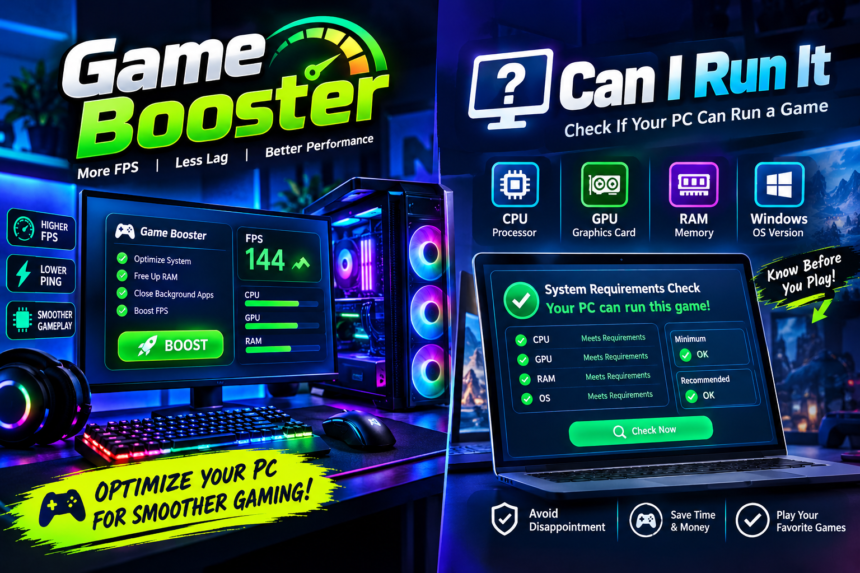
Two useful concepts can help with this process: an FPS Booster and the question Can I run it. The first focuses on improving the way a computer uses available resources during gaming, while the second helps users understand whether their hardware is suitable for a specific title.
Although these tools serve different purposes, they can complement each other when building a smoother gaming setup.
What Does FPS Mean in Gaming?
FPS stands for frames per second. It represents how many individual frames a computer generates during gameplay.
When FPS is stable, movement generally appears smoother and more consistent. When the frame rate drops significantly, players may notice stuttering, delayed visual updates, or an uneven experience.
The required FPS can vary depending on the game. A slow-paced strategy game may feel comfortable at a moderate frame rate, while competitive shooters and fast-action games can benefit from higher and more consistent performance.
Instead of focusing only on the highest possible number, players should aim for stable performance that matches their monitor and the type of games they play.
What Is an FPS Booster?
An FPS Booster is a software tool or optimization approach intended to help improve gaming performance. Depending on the software, it may manage background processes, optimize selected system settings, clean unnecessary temporary resources, or prioritize gaming-related activity.
The basic idea is simple: reduce avoidable resource usage so that more of the computer’s available capacity can be used by the game.
For a computer that is already close to its performance limit, small improvements may make gameplay feel more consistent. However, an FPS Booster cannot replace hardware that is fundamentally below a game’s requirements.
Why Background Programs Can Affect Gaming
A computer often runs many applications without the user actively interacting with them. Web browsers, synchronization tools, update services, messaging applications, and other utilities may continue using memory and processor resources.
During everyday work, this may not be noticeable. During gaming, however, limited resources can become more important.
Reducing unnecessary background activity can give the game a cleaner environment in which to operate. This is one of the areas where an FPS Booster can be useful.
Gamers should still avoid closing important system processes blindly. Optimization should focus on unnecessary applications rather than essential Windows services.
Can I Run It? Why This Question Matters
Before installing a new game, one of the most practical questions a PC owner can ask is, Can I run it?
Games are designed for different levels of hardware. Some can run comfortably on entry-level systems, while others require modern CPUs, powerful GPUs, substantial memory, and fast storage.
Checking compatibility before downloading or purchasing a game can prevent disappointment. It can also help users decide whether they should adjust expectations, upgrade hardware, or choose a different title.
Understanding Game Requirements
A game’s system requirements usually provide information about the hardware and software needed to play it.
These requirements may include:
- Processor model or performance level
- Graphics card
- System memory
- Available storage
- Operating system
- DirectX or other supporting technologies
The requirements are commonly divided into minimum and recommended specifications.
Minimum requirements generally indicate the basic configuration needed to run the game. Recommended requirements usually represent a more comfortable target for better graphical quality and performance.
Meeting the minimum does not necessarily mean that every setting can be turned to maximum.
Why the GPU Is So Important
The graphics processing unit has a major influence on gaming performance. Modern games can contain detailed environments, realistic lighting, high-resolution textures, and complex visual effects.
If the GPU is not powerful enough, lowering graphics settings may help. Resolution, shadows, reflections, anti-aliasing, and other visual options can have different effects on performance.
Before changing dozens of settings, players can adjust one option at a time and observe how the game responds.
This approach makes it easier to identify which settings have the greatest impact.
The Role of the CPU and RAM
Graphics are not the only consideration. The CPU is responsible for many calculations involved in gameplay, including game logic, physics, artificial intelligence, and other processes.
Some games are particularly CPU-intensive. In these cases, lowering graphics quality may not solve the problem if the processor itself is the limiting component.
RAM is also important. A system with insufficient memory may struggle when a demanding game is running alongside several other applications.
For this reason, a proper Can I run it assessment should consider the complete system rather than focusing on only one component.
Can an FPS Booster Fix Weak Hardware?
This is a common misunderstanding.
An FPS Booster may improve efficiency, but it cannot turn an entry-level graphics card into a high-end GPU. If a game requires significantly more processing power than the computer can provide, software optimization will have limited results.
For example, if a game requires a graphics card with substantially greater capabilities than the one installed in the PC, closing background applications will not completely solve the problem.
Optimization works best when the computer is already reasonably capable of running the game and there are additional resources being wasted.
Smart Ways to Improve FPS
Gamers can combine software optimization with sensible configuration changes.
Start by checking whether the computer meets the game’s requirements. If it does, update important hardware drivers and make sure the operating system is functioning properly.
Next, close applications that are not required during gameplay. Then experiment with in-game graphics settings.
Reducing resolution can produce a significant performance improvement, but it also affects image sharpness. Lowering demanding effects may provide a better balance between visual quality and frame rate.
Keeping the PC cool is also important. Excessive temperatures can cause components to reduce their operating performance.
Monitor Performance Instead of Guessing
One of the best ways to optimize a game is to monitor what the computer is doing.
If the GPU is consistently operating near full capacity, graphics settings may be the main limitation. If the CPU is heavily loaded while the GPU has available capacity, the processor or another system component may be creating the bottleneck.
Monitoring temperatures, memory usage, CPU load, GPU utilization, and FPS can provide useful information.
This data allows players to make informed adjustments instead of changing settings randomly.
When an Upgrade Makes More Sense
Sometimes optimization is not enough. If a computer consistently fails to meet the requirements of modern games, upgrading hardware may be the most effective solution.
Depending on the situation, an upgrade could involve additional RAM, a better graphics card, a faster processor, or improved storage.
The correct upgrade depends on the actual bottleneck. Buying the most expensive component is not always the best choice. A balanced system is generally more useful than having one extremely powerful part paired with outdated hardware.
A Better Gaming Routine
Gamers can develop a simple routine before installing or playing a demanding title:
Step 1: Check the game’s system requirements.
Step 2: Compare those requirements with the PC’s CPU, GPU, RAM, and storage.
Step 3: Ask, “Can I run it?” based on the complete configuration rather than one component.
Step 4: Update important drivers and system software.
Step 5: Close unnecessary applications before launching the game.
Step 6: Use an FPS Booster if appropriate to optimize available resources.
Step 7: Adjust graphics settings and monitor performance.
Step 8: Consider a hardware upgrade if the system remains below the desired performance level.
Final Thoughts
Getting better gaming performance does not always require buying a completely new computer. Understanding the existing hardware, checking game requirements, and eliminating unnecessary resource usage can make a meaningful difference.
An FPS Booster can help optimize a capable system by reducing avoidable background activity and improving the way resources are allocated. Meanwhile, asking Can I run it before installing a game helps users determine whether their computer is realistically prepared for the title.
The most effective strategy is to combine compatibility checks, sensible graphics settings, proper system maintenance, and performance monitoring. When software optimization and hardware capabilities are balanced correctly, gamers can enjoy smoother gameplay while making smarter decisions about future upgrades.