
Digital communication is becoming increasingly visual. Instead of describing a complicated process through several paragraphs of text, people can often explain it more effectively with a short video. Whether someone is demonstrating software, teaching an online lesson, recording gameplay, or preparing a presentation, capturing the desktop can make information easier to understand.
This is where a screen recorder becomes useful. Rather than relying on screenshots or written instructions, users can capture what happens on their display and turn it into a video. iTop Screen Recorder is one option designed for users who want to record desktop activity without having to learn complicated professional video-production software.
Why Screen Recording Has Become So Useful
A computer screen contains a large amount of information. Menus, buttons, applications, websites, presentations, and other visual elements can be difficult to describe accurately in writing.
A recording solves this problem by showing the process exactly as it happens.
For example, imagine explaining how to configure a particular software feature. A written guide might require several steps and screenshots. A short recording can demonstrate the same process while allowing the viewer to follow the cursor and see every action.
This makes screen recording useful for both technical and non-technical audiences.
Getting Started With iTop Screen Recorder
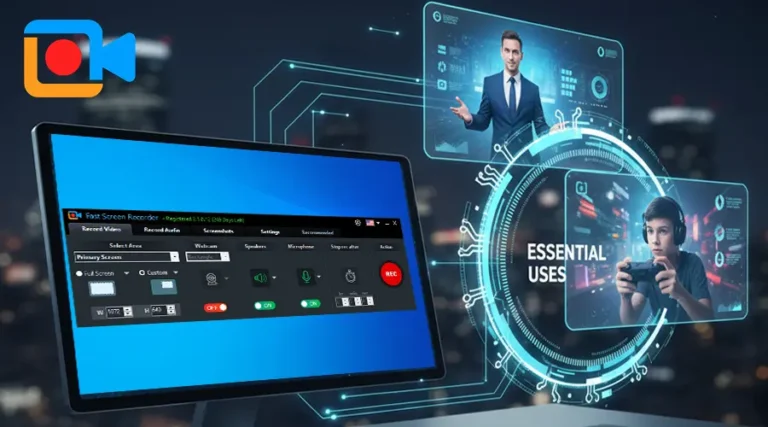
The purpose of iTop Screen Recorder is to simplify the process of capturing activity from a Windows computer. Users can choose what they want to record and configure the available recording options before starting.
A simple interface is particularly helpful for beginners. Instead of navigating through numerous professional editing controls, users can focus on the basic task: selecting an area, configuring audio, and beginning the recording.
This can make the software suitable for people who need occasional recordings as well as users who create videos regularly.
Choosing What to Capture
Not every project requires the entire desktop to be recorded. A good screen recorder should provide flexibility when selecting the capture area.
Depending on the purpose, users may want to capture:
- The complete display
- A particular application
- A browser window
- A selected section of the screen
- A specific program interface
Recording only the relevant area can make a video cleaner and easier to follow. It can also prevent unrelated information from appearing in the final file.
For example, a software tutorial can focus entirely on the application being demonstrated rather than showing the user’s complete desktop.
Creating Tutorials More Efficiently
Screen recording is particularly useful for tutorials. Many software instructions involve visual actions that are difficult to explain with text alone.
A creator can open the required application, start recording, and demonstrate the process step by step. If narration is included, viewers can hear an explanation while watching the actions on screen.
This approach works well for:
- Software tutorials
- Troubleshooting guides
- Installation instructions
- Website demonstrations
- Computer tips
- Technical lessons
The resulting video can then be shared with customers, students, colleagues, or online audiences.
Recording Audio Alongside Video
Visual content is often more effective when it includes clear audio. A screen recording can become much easier to understand when the creator explains what is happening.
Microphone narration can be useful for tutorials, presentations, gaming commentary, and educational content.
Before beginning a long recording, users should perform a short audio test. This helps confirm that the microphone is working properly and that the volume is appropriate.
A quiet recording environment can also improve the quality of the final video.
Capturing Online Lessons
Online education has created another important use for screen recording. Teachers can record digital lessons, software demonstrations, presentations, and explanations that students can watch later.
Students may also use recordings for personal study when they have the necessary permission.
A recorded lesson can be paused, replayed, and reviewed multiple times. This is particularly useful when the material includes complicated software procedures or detailed demonstrations.
However, users should always respect the privacy and recording policies of educational institutions and other participants.
Using Screen Recording for Business
Businesses can use screen recordings for internal and external communication.
For example, a company can create a short demonstration showing employees how to use a new application. Customer-support teams can prepare visual troubleshooting instructions, while marketing departments can demonstrate product features.
A short video can sometimes communicate information more efficiently than a long email.
Screen recordings can also be useful for reporting technical problems. Instead of simply telling a support team that an application is not working, a user can record the issue and show exactly what happens.
Gaming and Entertainment
Gaming is another popular reason people use a screen recorder. Players may want to capture gameplay highlights, create walkthroughs, explain strategies, or share memorable moments.
When recording games, performance is an important consideration. Recording can require additional system resources, so users should choose suitable quality settings for their computer.
It is also useful to decide whether game audio, microphone commentary, or both should be included before starting.
A short test recording can reveal whether the computer can maintain acceptable gameplay performance while recording.
Creating Product Demonstrations
Online sellers and software companies can benefit from screen-based product demonstrations.
A software company, for instance, can record a feature and show potential customers how it works. An online service can demonstrate its dashboard or explain a particular workflow.
Because the viewer can see the actual interface, product demonstrations can feel more informative than static screenshots.
Creators can later combine the recording with captions, graphics, or additional editing to produce a polished promotional video.
Planning Before Pressing Record
One common mistake is starting a recording without preparation. This can lead to unnecessary pauses, mistakes, or irrelevant content.
A simple plan can make the process much smoother.
Before recording, decide:
- What is the purpose of the video?
- Which section of the screen needs to be captured?
- Is narration required?
- What steps need to be demonstrated?
- Where will the final video be shared?
Preparing these details beforehand can reduce editing time and produce a more focused result.
Keeping Recordings Clear and Easy to Follow
Technical quality is only one part of a good recording. The presentation itself also matters.
Move the cursor deliberately, avoid unnecessary clicks, and explain important actions clearly. If the recording contains text, make sure the selected resolution allows viewers to read it comfortably.
Long videos can also be divided into logical sections. This makes them easier for viewers to navigate.
If the purpose is a quick tutorial, avoid including unrelated information simply to make the video longer.
Managing File Size
High-quality recordings can produce large files. Resolution, frame rate, duration, and compression all influence the final size.
Before recording a lengthy session, check available storage space. Users should also consider where the video will eventually be uploaded.
A recording intended for online sharing may not need the same settings as a high-quality archive. Selecting an appropriate balance between clarity and file size can make storage and sharing more convenient.
Protecting Personal Information
A desktop recording can unintentionally reveal private information. Notifications, email messages, personal documents, account details, and other sensitive content may appear on screen.
Before pressing the record button, close unnecessary applications and review the desktop. Disable notifications when appropriate and avoid displaying confidential information.
If another person’s content or conversation is being recorded, make sure the required permission has been obtained.
Why a Dedicated Screen Recorder Can Be Convenient
Operating systems may provide basic capture functions, but dedicated software can offer a more focused recording experience.
A tool such as iTop Screen Recorder is designed specifically around screen-capture workflows. This can be helpful for users who regularly create tutorials, demonstrations, lessons, or gaming videos.
Having recording controls in one place can reduce the time spent preparing a recording and make the overall workflow more straightforward.
Final Thoughts
Screen recording has become an important way to explain, teach, demonstrate, and share information. A good screen recorder can turn everyday desktop activity into useful visual content for education, business, gaming, technical support, and online publishing.
iTop Screen Recorder provides a practical approach for users who want to capture their computer screen and create recordings for different purposes. The best results come from combining suitable recording settings with good preparation, clear narration, and careful attention to privacy.
Whether you are explaining a software feature, demonstrating a product, recording a lesson, or capturing gameplay, screen recording can make digital communication more direct and easier to understand.