

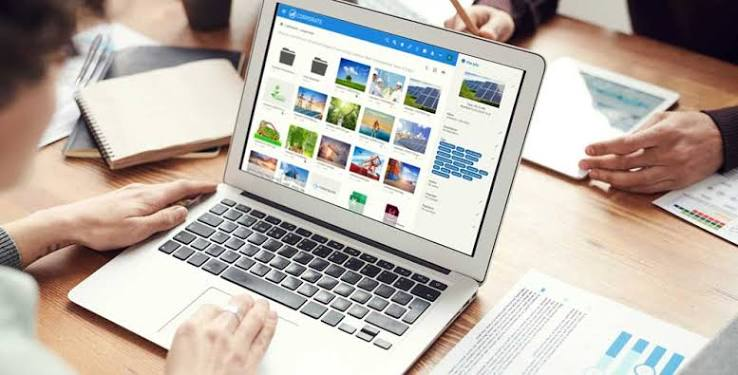
Most people collect digital media the same way they collect junk mail: enthusiastically at first, then chaotically, and eventually not at all because the whole thing has become unmanageable. Videos pile up across three devices, photos scatter between apps, and downloaded files disappear into folders nobody remembers naming. Sound familiar? This article breaks down the practical habits, tools, and decisions that help you build a media library that actually works for you, whether you are a casual collector or someone who genuinely depends on offline access to content.
Why Digital Media Management Matters More Than You Think
Storage is cheap. Attention is not. The real cost of a disorganized media library is not the gigabytes it wastes but the time you burn hunting for a specific file, re-downloading something you already saved, or discovering that a crucial video was deleted months ago. According to a 2023 study by Western Digital, the average person stores over 3,700 photos and videos on their primary device, yet fewer than 30 percent of those users have any consistent backup system in place. That is a lot of irreplaceable content sitting one dropped phone away from permanent loss.
Beyond personal memories, there is a practical productivity angle here. Students, researchers, content creators, and professionals who work with video and image assets regularly need reliable, organized access to their files. A well-structured library saves real time, reduces frustration, and prevents the kind of accidental duplication that quietly eats storage without adding any value.
Understanding the Different Types of Digital Media Storage
Before you can organize your media, it helps to understand the storage environments you are working with. Not all storage is created equal, and mixing them up without a plan leads to the scattered mess most people are already dealing with.
| Storage Type | Best For | Main Limitation | Typical Cost |
| Device Local Storage | Offline access, speed | Limited capacity, single point of failure | Included with device |
| Cloud Storage (Google Drive, iCloud, Dropbox) | Cross-device access, automatic backup | Subscription costs, requires internet | $0 to $10+ per month |
| External Hard Drive | Large collections, long-term archiving | Physical risk, manual management | $50 to $200 one-time |
| NAS (Network-Attached Storage) | Home media servers, family sharing | Upfront cost, setup complexity | $150 to $500+ one-time |
| USB Flash Drive | Portable, quick transfers | Small capacity, easy to lose | $10 to $50 |
For most people, a hybrid approach works best: keep frequently accessed files on local device storage, maintain an automatic cloud backup for anything irreplaceable, and use an external drive for large archives you do not need daily. The combination protects you from hardware failure, accidental deletion, and the limitations of any single system.
Building a Folder Structure That Actually Sticks
The biggest mistake people make when organizing media is choosing a structure that is too complicated to maintain. Elaborate nested folders with dozens of subcategories look satisfying when empty. Six months later, files are going straight to the desktop again because the system requires too much thought at the moment of saving.
A good folder structure is shallow, predictable, and consistent. Here is a starting framework that works across most use cases:
- Media (top-level folder)
- Photos > organized by year, then month (e.g., 2024 > 06-June)
- Videos > organized by category (e.g., Family, Travel, Work, Tutorials)
- Audio > organized by type (e.g., Music, Podcasts, Recordings)
- Downloads > a temporary holding folder reviewed weekly
- Archive > older files you want to keep but rarely access
The Downloads folder is worth special attention. Treat it as an inbox, not permanent storage. Set a weekly reminder to sort anything sitting there into its proper location. Files left in Downloads tend to accumulate indefinitely, and they are the first casualties when a device runs low on space and someone starts deleting things quickly.
Offline Video Access: What You Need to Know Before You Download
Video files are by far the largest contributors to storage bloat, and they are also the files people most often want to access offline. Whether you are heading somewhere without reliable internet, want to watch something repeatedly without buffering, or need a clip for a project, offline video is a common and legitimate need.
Before downloading any video content, it is worth understanding the copyright and terms-of-service landscape. Streaming platforms vary significantly in what they permit. YouTube, for example, allows downloads only within its own app for offline viewing in regions where YouTube Premium is available. Downloading content outside of an authorized app may violate a platform’s terms of service, so it is worth checking those terms for any platform you use. That said, there are entirely legitimate scenarios, such as downloading your own uploaded content, videos with Creative Commons licenses, or public domain recordings, where downloading makes complete sense.
For anyone navigating these decisions, understanding the technical steps involved is genuinely useful. The process of saving a YouTube video to your gallery is one of the more commonly searched topics in this space, and knowing how it works, along with the legal context, helps users make informed choices rather than stumbling into problems accidentally.
File Formats and Why They Matter for Video Storage
Not all video files are equal when it comes to storage efficiency. If you are building a library of downloaded video content, paying attention to file format can save significant space without sacrificing quality.
- MP4 (H.264): The most universally compatible format. Good quality-to-size ratio. Works on nearly every device and player.
- MP4 (H.265 / HEVC): Roughly half the file size of H.264 at comparable quality. Requires a device capable of hardware decoding to avoid playback strain.
- WebM: Excellent for web-based video, less commonly supported by media players and editing software.
- MKV: A container format that supports multiple audio and subtitle tracks. Ideal for archiving but can be overkill for casual viewing.
- AVI: An older format with large file sizes. Avoid unless compatibility with legacy software requires it.
For most people, MP4 with H.264 encoding hits the right balance between compatibility and file size. If you are working with a modern device and storage is genuinely tight, H.265 is worth the extra step of confirming your hardware supports it smoothly.
Naming Conventions: The Unglamorous Key to Finding Anything
A file named ‘VID_20240612_183042.mp4’ is essentially useless without watching it. If you are building a library you expect to search through later, descriptive file names are not optional, they are essential. The good news is that a simple naming convention takes only seconds per file and pays dividends for years.
A reliable naming format looks something like this: YYYY-MM-DD_Description_Version. So a tutorial video saved in June 2024 might become ‘2024-06-15_Sourdough-Starter-Tutorial_v1.mp4’. Starting with the date keeps files sorted chronologically when sorted alphabetically, which is a small thing that saves a lot of scrolling. The description should be specific enough that you know what the file contains without opening it. If you tend to save multiple versions of edited content, adding a version indicator prevents overwriting something you might need later.
For photos and videos captured on a device, many gallery apps allow batch renaming. Tools like ExifTool (free, command-line) or Adobe Bridge allow you to rename files based on their embedded metadata, including the date and time they were captured. This is particularly useful when importing large batches from a camera or phone.
Backup Strategies: The 3-2-1 Rule and How to Apply It
The 3-2-1 backup rule is a long-standing principle in data management, and it applies just as well to personal media libraries as it does to enterprise systems. The rule is straightforward: keep three copies of any important file, stored on two different types of media, with one copy stored off-site or in the cloud.
In practice, this might look like: your original files on your laptop’s internal drive, a second copy on an external hard drive kept at home, and a third copy synced automatically to a cloud service like Google Photos, iCloud, or Backblaze. The off-site or cloud copy is the one that saves you if your home is affected by fire, flood, or theft, scenarios that sound unlikely until they are not.
- Automate what you can: Use your device’s built-in backup settings or apps like Google Photos auto-backup to remove the human error factor.
- Check your backups regularly: A backup that fails silently is no backup at all. Spot-check your cloud and external copies every few months.
- Prioritize irreplaceable content first: If storage or budget is limited, focus backup resources on content you cannot recreate, family videos, important documents, original creative work.
- Label external drives clearly: Physical labels with the date of last update and contents description prevent confusion when you have multiple drives.
- Set a recurring calendar reminder: Backup habits erode without reinforcement. A monthly reminder to verify and update takes five minutes and prevents disaster.
Keeping Your Library Manageable Over Time
Even a well-built system degrades without maintenance. The goal is not to organize once and forget it but to build light habits that keep clutter from accumulating in the first place. Monthly reviews of your Downloads folder, quarterly checks of your backup systems, and an annual pass through older archived content to delete genuine duplicates or files you no longer need are all that most people require to keep things functional.
Duplicate file finders like dupeGuru (free, cross-platform) can scan your library and flag exact or near-duplicate files for review. Running one of these tools once or twice a year can reclaim significant storage space, especially if you have been copying files between folders or devices over many years without cleaning up.
Ultimately, a well-organized digital media library is less about perfection and more about consistency. Pick a structure simple enough to follow when you are tired or in a hurry, automate the parts that technology can handle, and build in occasional check-ins to catch what slips through. That combination handles the vast majority of what goes wrong with personal media collections, and it does so without demanding more time or effort than the problem is worth.